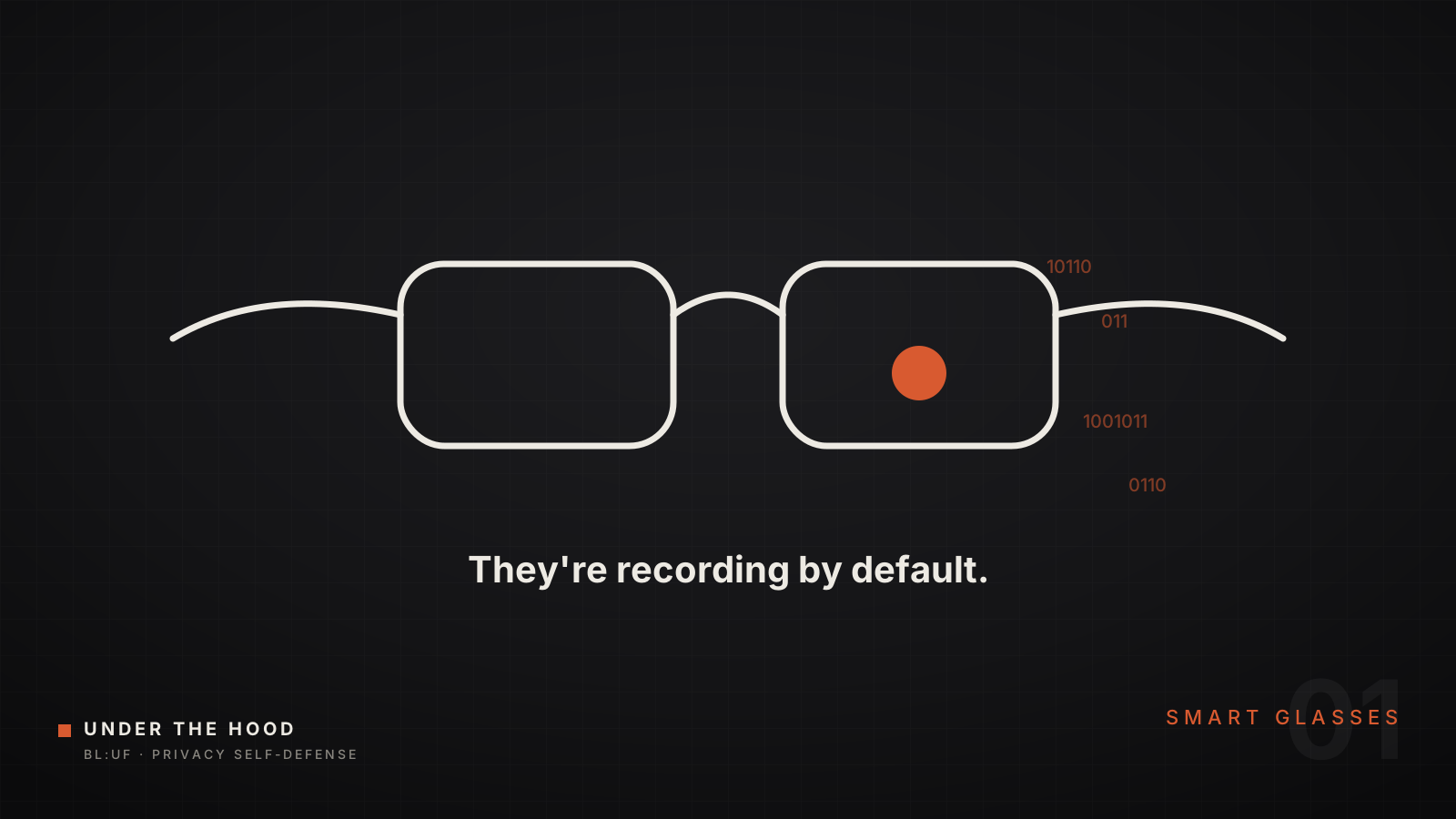
I was nervous about wearing my own sunglasses.
I'd bought Ray-Ban Meta glasses — camera, speakers, a built-in AI you summon by saying "Hey Meta." And every time I put them on, the same thought landed: somewhere, footage of my day might be reviewed by a company I've never met, to train an AI I never agreed to feed. I almost left them in a drawer. Instead I spent an evening finding out exactly what they do — and exactly how to make them stop. You don't void anything. There's nothing to "hack." There's a settings page nobody walks you through.
Why your gut is right
In April 2025, Meta rewrote the privacy rules for these glasses. Three things flipped at once:
- AI features are now ON by default.
- Photos, video, and voice you run through the AI can be used to train Meta's models.
- The switch to stop your voice recordings from being stored is gone — Meta now keeps them for up to a year.
The Electronic Frontier Foundation — a digital-rights group that does not cry wolf — told people to think twice before using them at all. So the worry in the headlines isn't a myth. It's the factory setting.
Why you can't "install" a fix
My first instinct was probably yours: put something on the glasses to lock them down. You can't. The glasses are a sealed appliance — the software is signed and locked, there's no jailbreak, no custom firmware, no privacy app that runs on them. Anyone selling a "privacy mod" for Ray-Ban Metas is selling nothing.
That sounds like bad news. It's actually the good news. It means everything that scares you lives in three places you fully control: the app, your network, and your habits. Shut those down and the parts you're afraid of simply can't run.
The three switches that matter most
1. Turn off "Cloud media." In the Meta AI app, open your glasses, then Privacy. "Cloud media" is the setting that ships your photos and videos off your phone to Meta's servers. Off means your captures stay local — and what never reaches the cloud can't be reviewed or pulled into training. If you do nothing else, do this one.
2. Turn off "Hey Meta." Here's the trap I didn't know about: saying "Hey Meta" turns the camera on automatically, right alongside the microphone. And since Meta removed the ability to stop voice recordings from being saved, the only real defense is to not let the glasses listen in the first place. Kill the wake word. Use the physical button on the frame to take photos and video instead — manual capture doesn't wake the AI, and doesn't feed it.
3. Don't use "Meta AI with camera." That's the "look at something and ask about it" feature — what plant is this, translate this menu. Every time you use it, you are personally handing Meta an image from your day, which is exactly the data the new policy lets them train on. Skip the feature, starve the machine.
Then, because Meta won't let you stop voice storage outright: go into settings and delete your voice history on a schedule. It's a chore. It's also the only lever they left you.
The closest thing to "installing protection"
You can't put software on the glasses — but you can muzzle them from your phone and router. This is where the kind of tool I wrote about last time earns its keep: a DNS filter like NextDNS or Pi-hole blocks the servers the app uses to phone home — and a network-level block holds even when Meta silently flips a setting back on after an update, which they have a history of doing.
Also strip the Meta AI app's phone permissions: deny it background location, microphone, and contacts except while you're actively using it. The glasses can't upload what the app can't reach.
The free move that does the most
Treat them as dumb camera sunglasses with good speakers. Physical button: yes. Voice and AI: off. That single mindset shift defeats most of the collection without touching another menu.
And if your worry runs deeper — if it's really about who eventually reviews this footage — know there's an active lawsuit alleging Ray-Ban Meta footage was routed to overseas reviewers. If that's your real concern, deciding these aren't the device for you is a rational call, not a failure of nerve.
Do it yourself (about 10 minutes)
- Open the Meta AI app, go to your glasses, then Privacy.
- Turn off Cloud media.
- Turn off "Hey Meta" / the voice assistant; switch to the shutter button for capture.
- Stop using "Meta AI with camera."
- Delete your stored voice recordings — and set a reminder to do it again.
- In your phone's settings, cut the app's location, microphone, and contacts to "while using."
- Best of all: block Meta's upload domains with a DNS filter at the network level.
- Re-check after every app update — toggles get flipped back.
Wear them like the camera they are, and the thing you were afraid of can't happen. No warranty harmed — there was never a door to open. Just a settings page that needed someone to tell you the truth about it.
Receipts: EFF, "Think Twice Before Buying or Using Meta's Ray-Bans" (2026); TechCrunch and PetaPixel on Meta's April 2025 policy change (AI on by default; photos and voice usable for training; the voice-storage opt-out removed, recordings kept up to a year); The Decoder on default voice recording; Road to VR on the overseas-reviewer lawsuit; Meta's own AI-glasses privacy page (meta.com/ai-glasses/privacy). Setting names match the Meta AI app as of June 2026 and may move. Spotted an error? editor@thebluf.news